Block Blast Mod APK on PC – How to Play on Windows and Mac
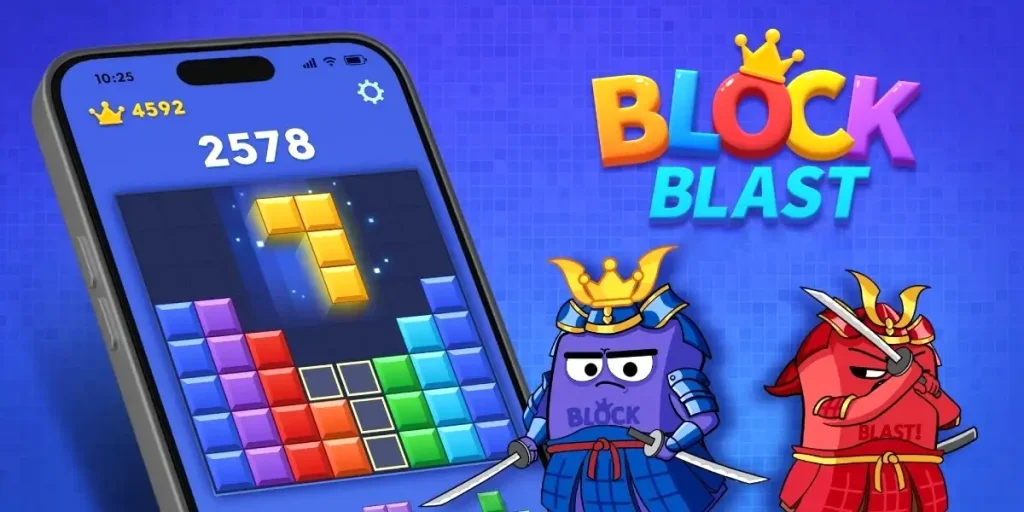
Block Blast isn’t available as a native PC application, but that doesn’t mean you’re stuck playing on a small screen. The Block Blast Mod APK on PC works cleanly through Android emulators — software that runs a full Android environment inside your Windows or Mac machine. The mod features carry over completely: unlimited lives, no ads, all boosters unlocked, all running on a full-size monitor.
This guide covers the two most reliable ways to get Block Blast Mod APK running on a computer — BlueStacks and LDPlayer — plus the full install steps for each, performance tips, and answers to the questions that come up most often. No technical background needed; if you can install a regular Windows or Mac application, you can set this up.
Before you start, download the Block Blast Mod APK file from the homepage and save it somewhere easy to find on your PC. You’ll need it during the emulator setup.
What Is an Android Emulator?
An Android emulator creates a virtual Android device that runs inside your PC like any other application. From inside that virtual environment, you can install and play any Android app or game — including APK files that aren’t on the Play Store.
Emulators are legitimate software used widely by developers and gamers alike. The major ones — BlueStacks, LDPlayer, NoxPlayer — have been around for years, have millions of users, and are safe to install on Windows and Mac. They’re not exploits or workarounds in any grey sense; they’re purpose-built tools for running Android on desktop hardware.
For Block Blast specifically, playing on PC offers real advantages: larger screen, keyboard and mouse controls, no battery drain, and no interruptions from calls or notifications. If you’re stuck on a difficult level, you can also use the Block Blast solver tool to instantly find the best move and improve your score without trial and error.
Which Emulator Should You Use?
There are several solid options, but two stand out for Block Blast in particular.
| Emulator | Platform | Best For | Android | Free? |
|---|---|---|---|---|
BlueStacks 5 | Windows, Mac | Beginners, broad compatibility | Android 9 / 11 | Free |
LDPlayer 9 | Windows only | Performance on mid-range PCs | Android 9 | Free |
NoxPlayer | Windows, Mac | Older PCs, lighter footprint | Android 7 / 9 | Free |
MuMu Player | Windows, Mac | Smooth performance, clean UI | Android 12 | Free |
BlueStacks is the most widely used and easiest to set up, making it the default recommendation for most users. LDPlayer is a strong alternative if you’re on Windows and want slightly better performance on older hardware. The steps below cover both.
Method 1 – Block Blast Mod APK on BlueStacks
BlueStacks is available for both Windows and Mac and takes about five minutes to set up from scratch.
Step 1 – Download and Install BlueStacks
- Go to bluestacks.com and download the installer for your operating system.
- Run the installer and follow the on-screen prompts. BlueStacks will install like any normal application.
- Launch BlueStacks once installation completes. The first launch takes a minute or two as it sets up the Android environment.
Step 2 – Sign Into Google (Optional)
BlueStacks will prompt you to sign into a Google account. This is optional for installing APK files directly — you can skip it or sign in with any Google account. Signing in allows you to access the Play Store inside BlueStacks if you want it, but it’s not required for the mod.
Step 3 – Install the Block Blast Mod APK
- Locate the Block Blast Mod APK file you downloaded to your PC.
- Drag the APK file directly into the BlueStacks window. BlueStacks detects APK files automatically and begins the install.
- Alternatively, go to My Games → Install APK in BlueStacks and browse to the file manually.
- Wait for the install confirmation — it usually takes under 30 seconds.
Step 4 – Launch Block Blast
Find Block Blast in the BlueStacks home screen or My Games tab and click to launch. The game opens in its own window. On first launch, give it 20–30 seconds to load all assets — subsequent launches are faster.
Step 5 – Verify Mod Features
Check that unlimited lives are active, no ads appear during play, and all boosters are available. If mod features aren’t showing, clear the app cache inside BlueStacks: go to Settings → Apps → Block Blast → Clear Cache, then relaunch.
Method 2 – Block Blast Mod APK on LDPlayer
LDPlayer is Windows-only but runs noticeably lighter on older or mid-range PCs. The install process is similar to BlueStacks.
Step 1 – Download and Install LDPlayer
- Go to ldplayer.net and download the LDPlayer 9 installer.
- Run the installer and complete the setup — it installs like a standard Windows application.
- Launch LDPlayer and wait for the initial Android environment setup to finish.
Step 2 – Install the Mod APK
- Drag the Block Blast Mod APK file directly into the LDPlayer window, or click the APK Install button in the sidebar toolbar.
- Browse to the file location and confirm the install.
- LDPlayer installs the APK and adds Block Blast to the home screen automatically.
Step 3 – Launch and Play
Click the Block Blast icon on the LDPlayer home screen. The game launches in the emulator window. LDPlayer’s default resolution works well for Block Blast — no additional configuration needed for most setups.
Minimum PC Requirements for Running Block Blast on an Emulator
Block Blast itself is a lightweight game. The emulator is what determines whether your PC can handle it smoothly.
| Component | Minimum | Recommended |
|---|---|---|
| OS | Windows 7 / macOS Sierra | Windows 10/11 / macOS Monterey+ |
| Processor | Intel/AMD dual-core | Intel/AMD quad-core or higher |
| RAM | 4 GB | 8 GB or more |
| Storage | 5 GB free | 10 GB free |
| Graphics | OpenGL 2.0 compatible | Dedicated GPU (any) |
| Virtualization | Enabled in BIOS | Enabled in BIOS |
Most PCs bought in the last six years will meet the recommended specs without issue. The only thing worth checking is virtualization — it needs to be enabled in your BIOS for emulators to run at full speed. Most modern PCs have it enabled by default.
How to Enable Virtualization for Better Emulator Performance
If BlueStacks or LDPlayer runs slowly or warns about virtualization being disabled, here’s how to fix it.
- Restart your PC and enter the BIOS/UEFI setup. On most machines, press F2, DEL, or F10 immediately after the manufacturer logo appears — the exact key varies by brand.
- Find the CPU Configuration or Advanced section.
- Look for an option called Intel Virtualization Technology (VT-x) or AMD-V / SVM Mode.
- Set it to Enabled.
- Save and exit. Your PC will restart normally.
After enabling virtualization, relaunch your emulator. Performance improvement is immediate and significant — this is worth doing if you haven’t already.
Performance Tips for Smoother Gameplay on PC
Block Blast runs well on emulators out of the box, but these adjustments help if you notice any lag or frame drops.
Increase Allocated RAM
Both BlueStacks and LDPlayer let you increase how much RAM the emulator uses. In BlueStacks, go to Settings → Performance and set Memory to 3GB or 4GB if your PC has 8GB or more total RAM. More RAM means fewer slowdowns when switching between the emulator and other applications.
Set CPU Cores to 2 or 4
In the same performance settings, set the CPU allocation to 2 or 4 cores. Block Blast doesn’t need more than 2, but having 4 available prevents the emulator itself from competing with the game for processing time.
Use High Performance Mode
BlueStacks has a built-in High Performance mode in its settings. Enable it for any game where you want smooth animation. LDPlayer has a similar option under its settings menu.
Close Other Applications
Emulators are memory-intensive. Closing browsers, background apps, and other programs before launching the emulator frees up RAM and reduces loading times noticeably.
Playing Block Blast with Keyboard and Mouse on PC
Block Blast is a tap-based puzzle game, which translates naturally to mouse clicks on PC. Left-click replaces tap — drag blocks to position and click to place. No special key mapping is needed.
BlueStacks has a built-in key mapping tool if you want to assign keyboard shortcuts to specific actions, but for Block Blast the default mouse-click controls are intuitive and don’t require any customisation.
Can You Sync Progress Between PC and Mobile?
If Block Blast supports cloud saving (linked to a Google account or its own account system), progress syncs between your emulator session and your Android device as long as both are signed into the same account.
There’s a caveat with the mod version: some cloud sync features may not work correctly on modded builds because the package signature differs from the official app. If syncing matters to you, test it after setup — start a session on PC, complete a few levels, then check your mobile device. If cloud save is working, progress will reflect on both ends.
Troubleshooting Block Blast Mod APK on PC
Emulator Won’t Launch or Crashes on Startup
Almost always a virtualization issue. Check that VT-x or AMD-V is enabled in your BIOS using the steps above. Also make sure Hyper-V is disabled on Windows — it conflicts with most Android emulators. Disable it via Control Panel → Programs → Turn Windows Features On or Off → uncheck Hyper-V.
Block Blast Crashes Inside the Emulator
Try clearing the app cache inside the emulator (Settings → Apps → Block Blast → Clear Cache) and relaunch. If crashes persist, delete the app, redownload the APK from the homepage, and reinstall.
Game Runs but Mod Features Aren’t Active
This typically means the official version of Block Blast was already installed inside the emulator (via Play Store) before you installed the mod APK. Uninstall the Play Store version, then install the mod APK fresh. The two builds conflict if both are present.
APK Won’t Install Inside Emulator
Make sure you’re dragging the APK into the emulator window, not into a folder on your PC. Alternatively, use the emulator’s own APK install button to browse to the file. If the install still fails, verify the APK file isn’t corrupted by checking the file size matches what’s listed on the download page.
Screen Resolution Looks Wrong
In BlueStacks settings, go to Display and set the resolution to 1280×720 or 1920×1080 depending on your monitor. Block Blast’s UI scales cleanly at both resolutions. In LDPlayer, the same option is found under Settings → Display.
For issues that occur during regular gameplay rather than setup, the Block Blast not working fix guide covers crashes, freezes, and error messages in detail.
Frequently Asked Questions
01
Can I play Block Blast Mod APK on PC?
02
Which emulator works best for Block Blast on PC?
03
Do I need a powerful PC to run Block Blast on an emulator?
04
How do I install an APK file in BlueStacks?
05
Is BlueStacks safe to install?
06
Why is Block Blast running slowly in the emulator?
07
Can I use the same Block Blast save on both PC and mobile?
Start Playing on a Bigger Screen
Setting up an emulator takes fifteen minutes at most, and once it’s running, Block Blast on PC is a genuinely better experience for longer sessions — bigger board, precise mouse controls, no battery concerns. Download the Block Blast Mod APK if you haven’t already, pick your emulator, and follow the steps above.
If you’re setting up the mod for the first time and want a refresher on the APK install process inside the emulator, the full install guide covers every step. And if anything stops working after setup, the not working fix page has you covered.